
Instant, right there
Press the layout switch key and the HUD appears with no delay. It floats above full-screen apps, so it works even when the menu bar is hidden.
macOS puts the input source in the corner of the menu bar. Go full screen and even that disappears. LnHud puts it where you are looking.
Press the layout switch key and the HUD appears with no delay. It floats above full-screen apps, so it works even when the menu bar is hidden.
Center by default, or tuck it into a corner. Horizontal and vertical offsets from -200 to 200 let you place it exactly.
Font 10–96pt, duration 0.5–3 seconds, opacity 30–100%, corner radius 8–48. Find the point where it is visible but never in the way.
Navy for Korean, magenta for English — you know the layout from the color before you read the text. Eight presets plus a color picker.
Built-in display, main screen, or the screen your mouse is on. With several monitors, show the HUD only where you are actually looking.
No Dock icon. Hide the menu bar icon too and only the HUD remains. Launch it at login and forget it is there.
Move a slider and the HUD previews itself, so you never have to guess at a value.
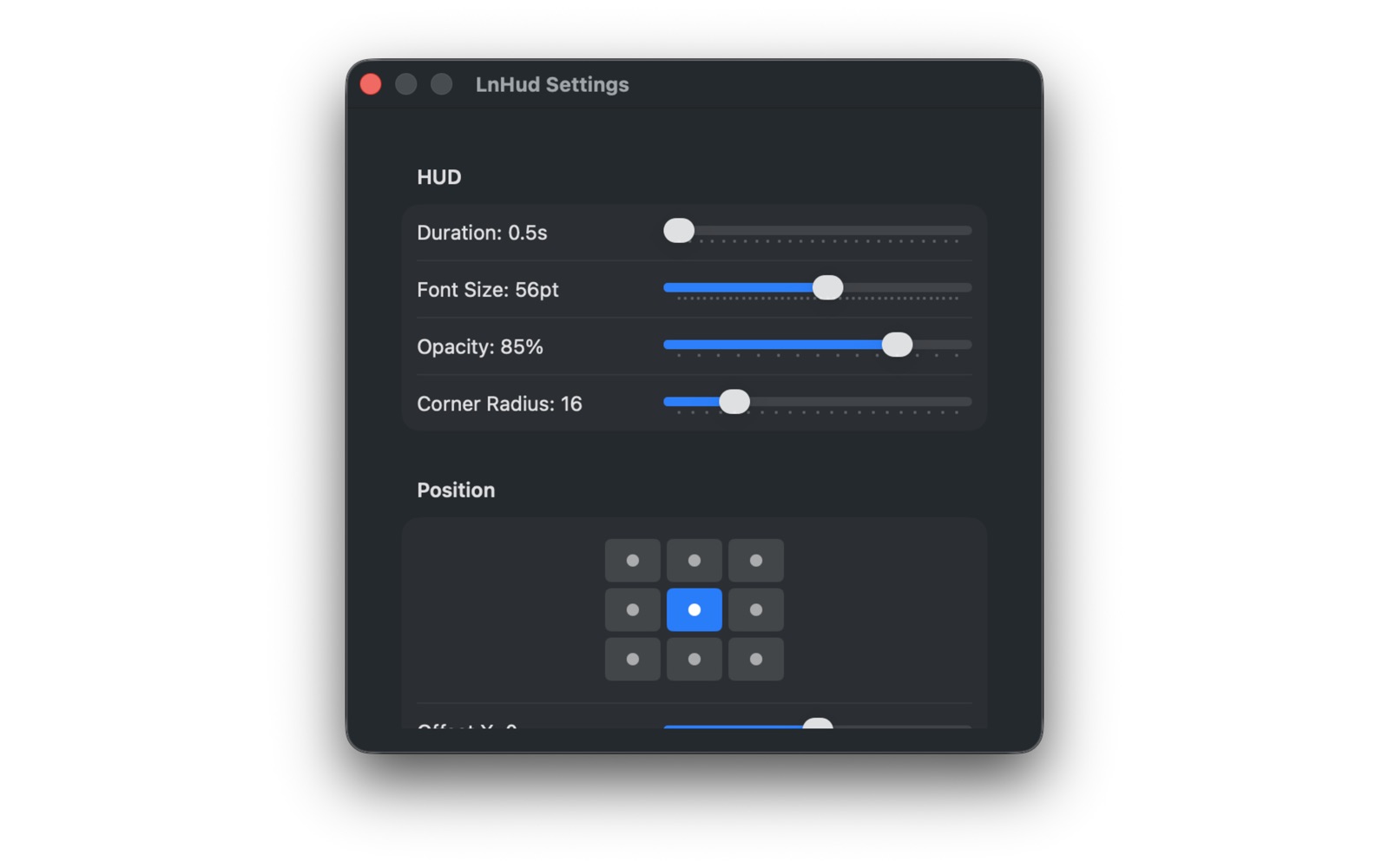
Every value is spelled out — duration 0.5s, font 56pt. The grid below picks where the HUD appears.
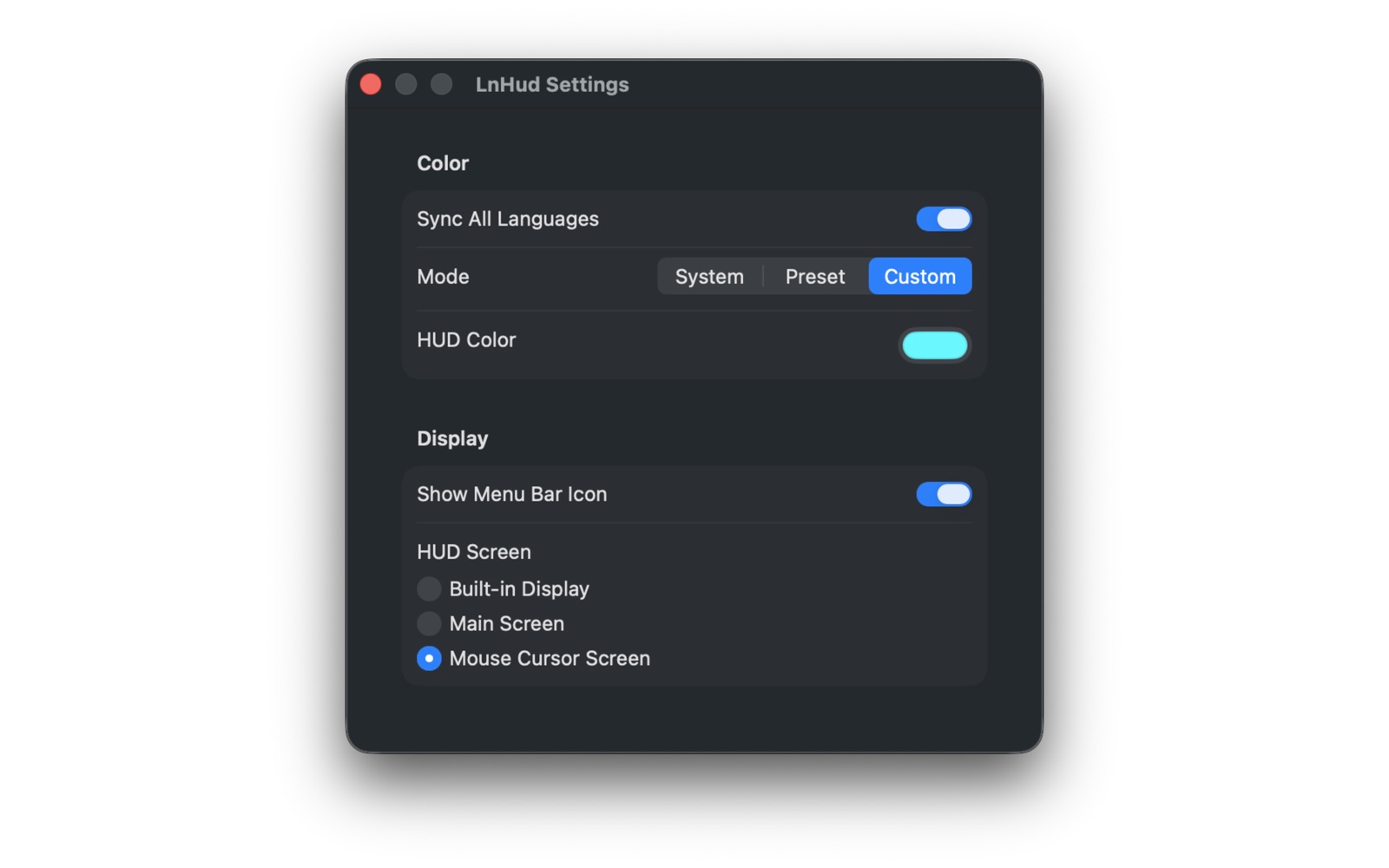
Follow the system look, choose one of eight presets, or pick any color you like.
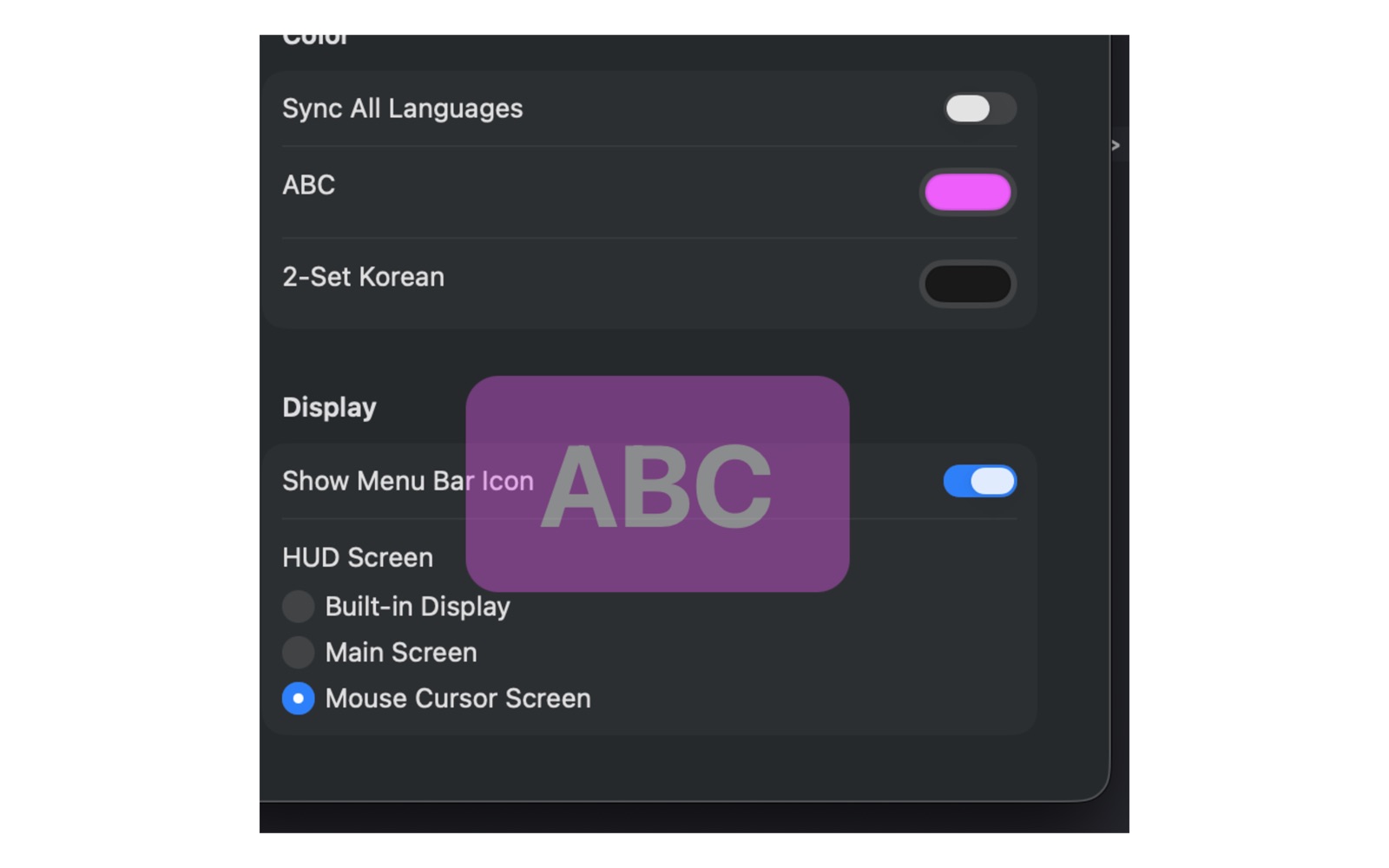
Turn off Sync All Languages and each input source gets its own color. The preview appears as you choose.
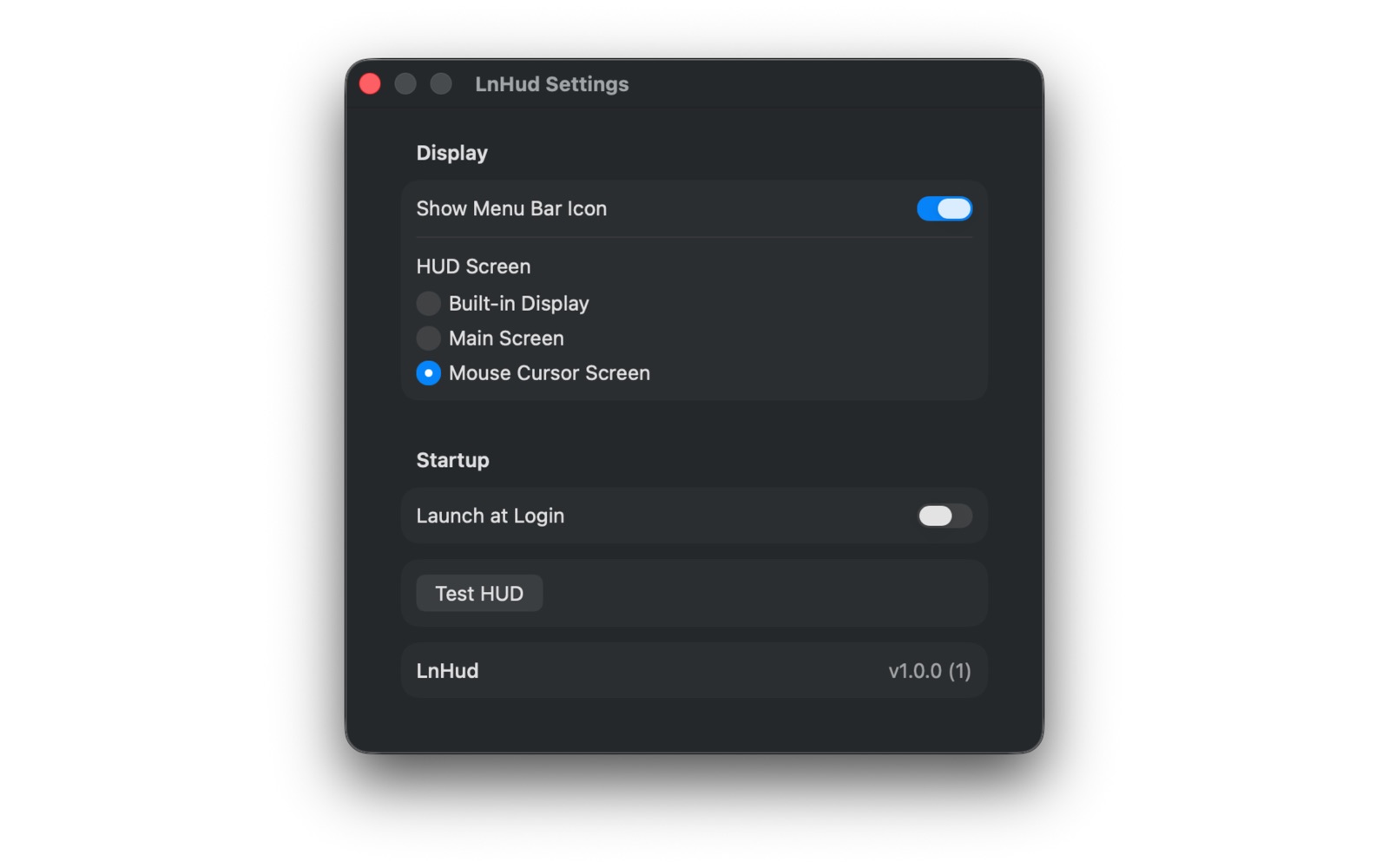
Choose which display shows the HUD and whether LnHud starts at login. Test HUD shows the current settings right away.
The defaults work as they are, or move them one at a time to suit your screen.
| Setting | Range | Default |
|---|---|---|
| Duration | 0.5 – 3.0s | 1.0s |
| Font size | 10 – 96pt | 64pt |
| Corner radius | 8 – 48 | 24 |
| Opacity | 30 – 100% | 90% |
| Position | 9-cell grid | Center |
| Offset X / Y | -200 – 200 | 0 |
| Color mode | System · Preset · Custom | System |
| Presets | Dark · Graphite · Navy · Indigo · Teal · Forest · Berry · Brown | — |
| Sync all languages | On · Off | On |
| HUD screen | Built-in · Main · Mouse cursor | Built-in |
| Menu bar icon | On · Off | On |
| Launch at login | On · Off | Off |
People who move between input sources many times a day.
There is more than one way to show the input source. LnHud takes this one.
The app has no network entitlement. It never reads what you type — only which input source is active. Your settings stay on this Mac.
macOS changes only a small label in the far corner of the menu bar. On a large display, or in a full-screen app where the menu bar is hidden, that label is easy to miss — so you find out only after typing a whole sentence in the wrong language. LnHud moves that information to the middle of the screen you are looking at.
Any input source registered in macOS. Korean, English, Japanese, Chinese and every other layout are shown with the exact name macOS gives them — 'ABC' for the Latin layout, '2-Set Korean' for the Korean one. Adding a new keyboard layout needs no setup in LnHud.
No. It only reads which input source is active, never what you type. The app has no network entitlement, so there is no way for anything to leave your Mac, and it contains no analytics.
Yes. The HUD is a floating panel that draws above other windows, including full-screen apps. That is exactly when the menu bar indicator is unavailable, so it matters most there.
You choose: the built-in display, the main screen, or the screen the mouse cursor is on. The last option shows the HUD only on the monitor you are currently working on.
Yes, but that also hides the way into settings. Relaunch the app, or run open lnhud://preferences in Terminal, to bring the settings window back.
$0.99, paid once. There is no subscription and no in-app purchase.
macOS 13 Ventura or later. It is a universal build for Apple Silicon and Intel, and the download is 191 KB.
Turn on Launch at Login and LnHud starts with every login. It is off by default.